Import Active911 devices into StationCommand.
The Responder Device Directory links Active911 device IDs to roster personnel, authorized users, and apparatus so StationCommand shows recognizable names instead of raw device codes.
https://agency.stationcommand.app/device. Replace agency with your department's StationCommand subdomain.Open Devices in Active911
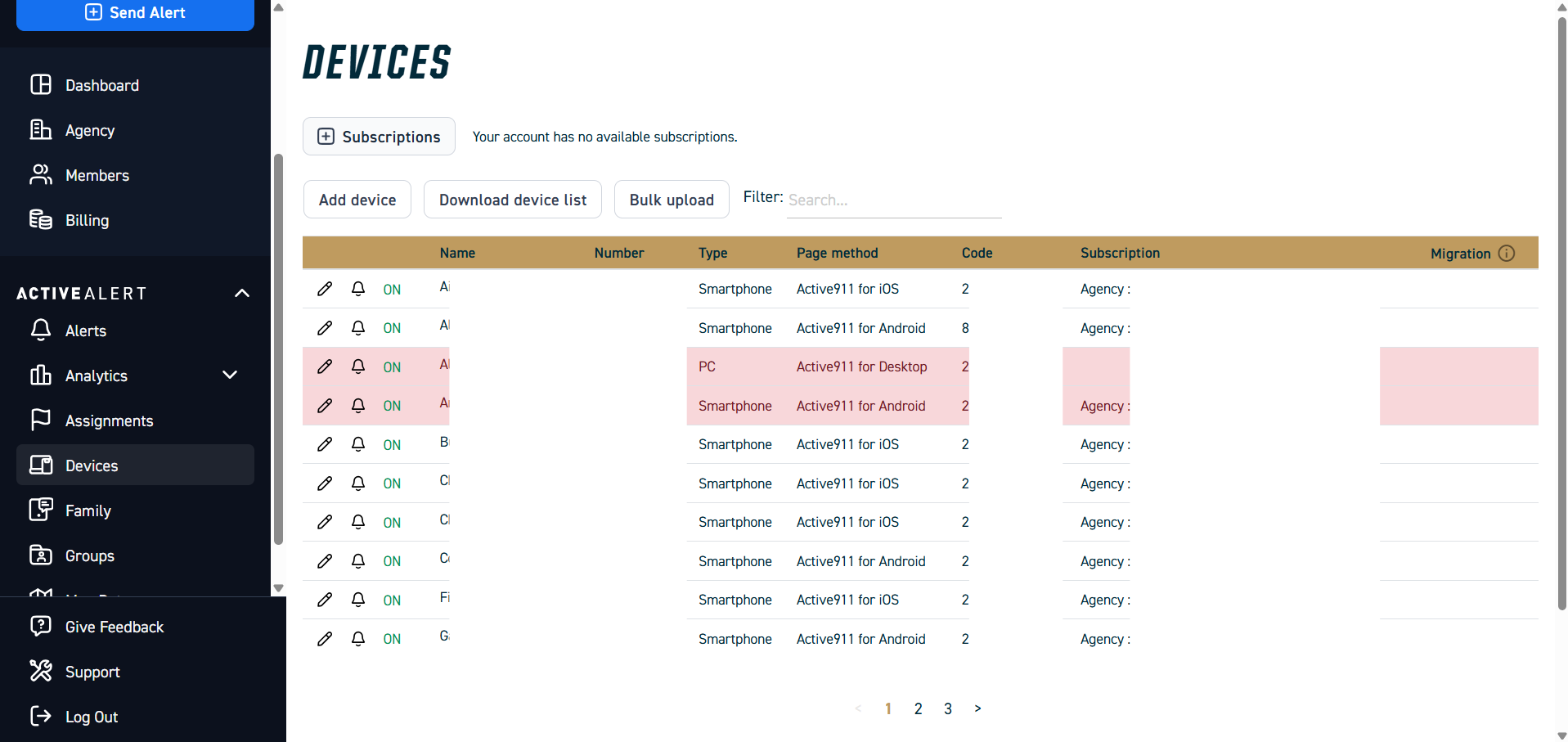
Sign in to Active911 and open Devices from the left navigation.
Download the device list
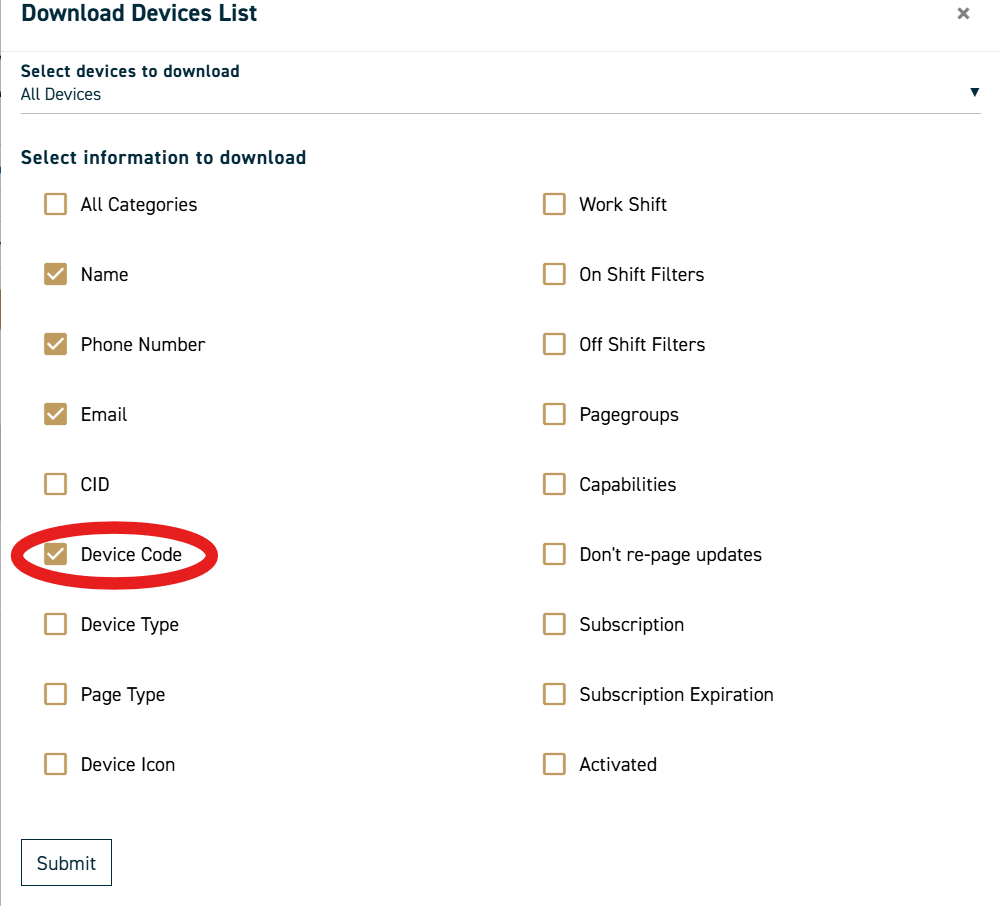
Click Download device list. Choose All Devices unless you intentionally want a partial export.
The CSV must include Name and Device Code. Other fields may be included, but these are the important fields for StationCommand.
Open the StationCommand Device Directory
https://agency.stationcommand.app/deviceReplace agency with the department's actual StationCommand subdomain.
Import the CSV
Expand Import Active911 Devices from CSV, choose the CSV downloaded from Active911, and click Import Devices.
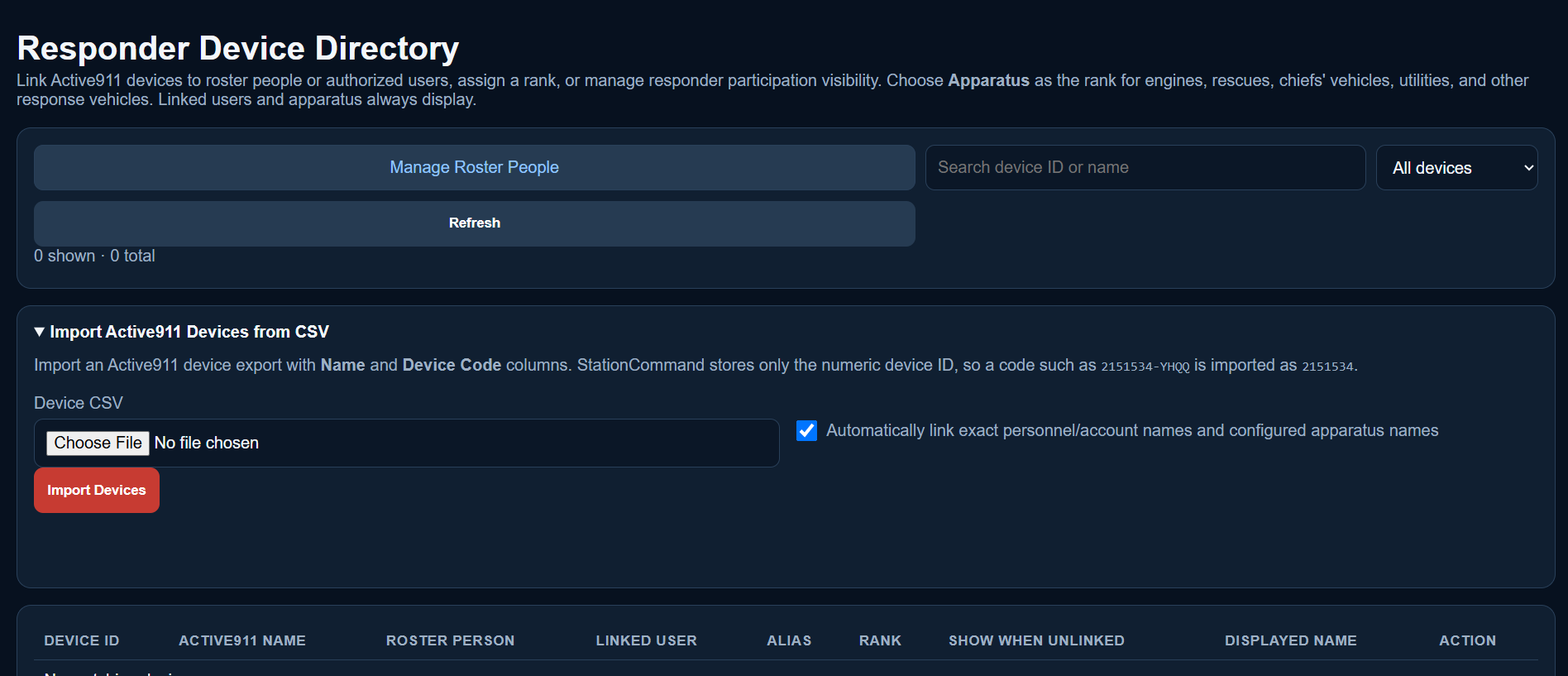
2151534-YHQQ is imported as 2151534.Use automatic name matching when appropriate
Leave Automatically link exact personnel/account names and configured apparatus names checked when Active911 names exactly match records already configured in StationCommand. Unmatched devices can still be linked manually afterward.
Review every imported device
If using live tracking
Device import is also the foundation for B.3 private location tracking. Apparatus must be classified as Apparatus; responder devices must be linked to the correct person/account. The Active911 token also needs Read Devices. See Private Device Tracking.
Verify during an Active911-fed incident
Confirm that StationCommand displays the expected responder and apparatus names. If a device appears under the wrong name, return to the Device Directory and correct its link.