Connect Active911 to StationCommand.
Follow these steps to generate Active911 OAuth credentials and configure the Active911 integration in StationCommand.
Open the Active911 token generator
console.active911.com/interface/dev/oauth_gen.phpGenerate Active911 OAuth credentials
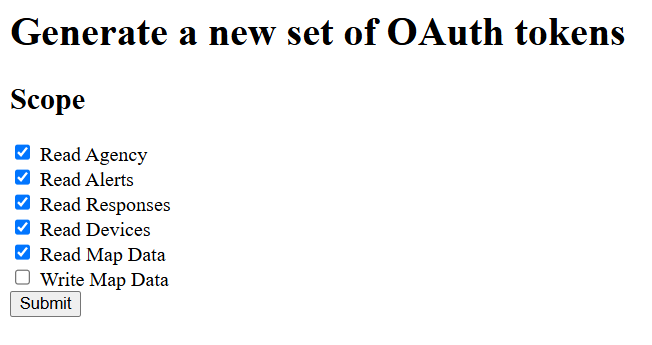
Open the Active911 OAuth token generator. Select Read Agency, Read Alerts, Read Responses, Read Devices, and Read Map Data. Leave Write Map Data unchecked.
Select your agency
Choose the department or agency that this StationCommand installation will use, then click Submit.

Authorize StationCommand access
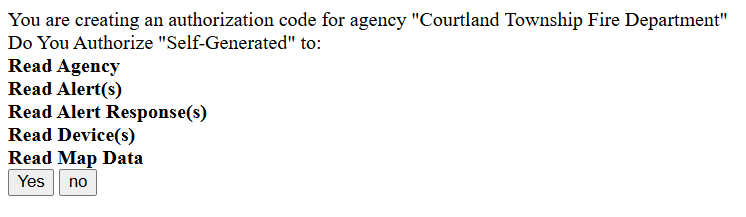
Verify the agency and the five requested read permissions, then select Yes.
Save the Refresh Token
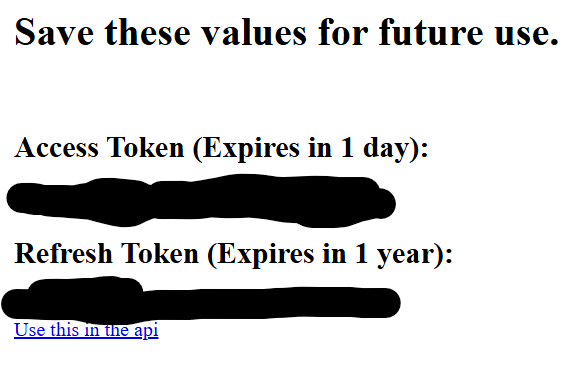
Active911 generates an Access Token and Refresh Token. Copy the Refresh Token for StationCommand. The access token expires quickly; StationCommand uses the refresh token to obtain new access tokens.
Open StationCommand Administration
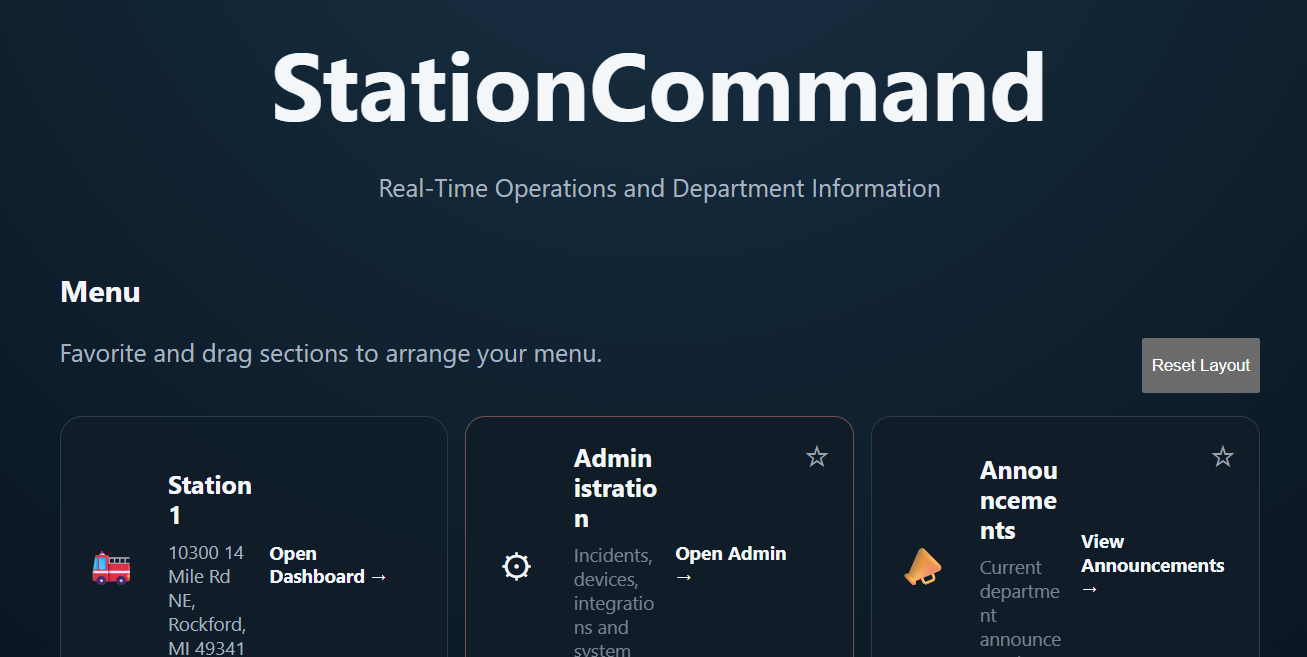
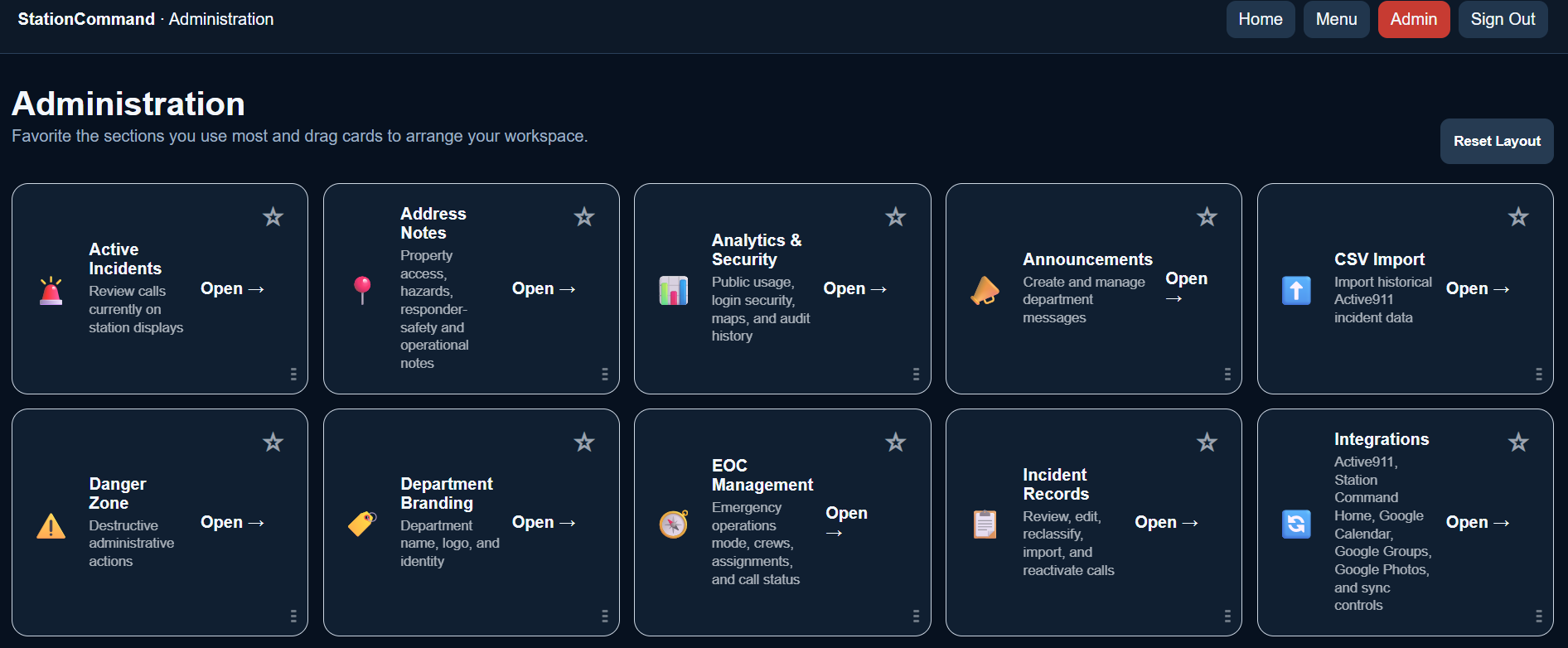
Sign in to StationCommand, open Menu, and select Administration.
Open Integrations
From the Administration workspace, select the Integrations card.
Configure Active911
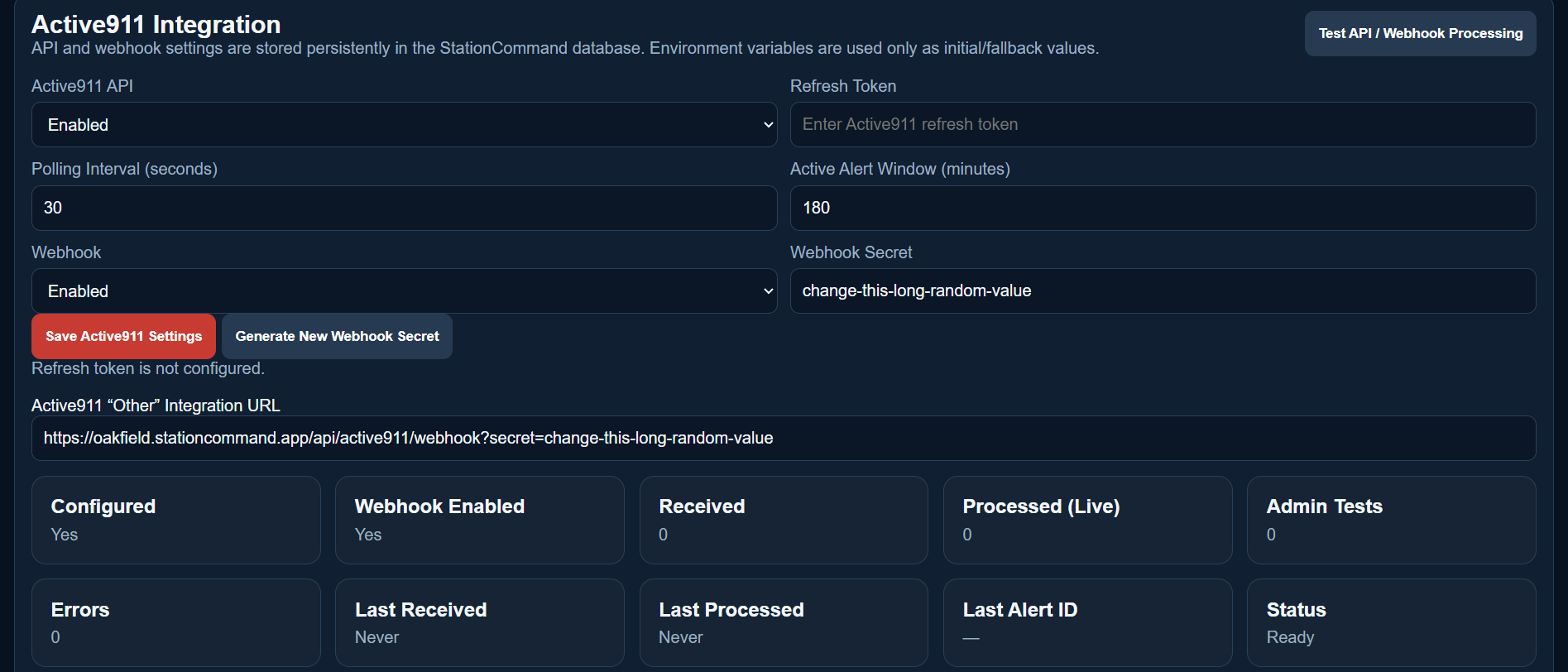
Enable the Active911 API, paste the Refresh Token, choose the polling interval and active alert window, enable Webhook, click Generate New Webhook Secret, and then Save Active911 Settings.
Configure the Active911 “Other” integration
After saving, copy the complete Active911 “Other” Integration URL displayed by StationCommand. Configure an Other integration in Active911 using that URL as its destination. The URL contains your webhook secret, so treat the complete URL as sensitive.
Test and verify
Return to StationCommand and click Test API / Webhook Processing. Use Configured, Webhook Enabled, Received, Processed (Live), Errors, Last Received, and Last Processed to verify the connection and troubleshoot failures.
API polling vs. webhook processing
The Refresh Token lets StationCommand authenticate to the Active911 API. The “Other” Integration URL is the webhook destination for incoming Active911 activity. This distinction is useful when troubleshooting.
Need help? contact@grandriver.dev